Whether you are applying for a front-office job, a sales coordinator role, a government clerical post or your first position in a private company, you will almost certainly be asked one question: “Are you comfortable with computers?” Saying “yes” is easy. Proving it on the first day is what actually matters. This guide breaks down the basic computer skills employers really expect, how they are used at work, how to practise them, and how to present them on your resume so that recruiters take you seriously.
Why basic computer skills matter in almost every job
A few years ago, computer knowledge was seen as a “plus point” for office jobs. Today it is simply assumed. Shop owners send invoices on WhatsApp and email, receptionists manage appointments in spreadsheets, delivery supervisors track orders on dashboards, and accounts assistants work in Tally and Excel all day. Even jobs that are not desk-based usually involve filling online forms, reading instructions on a phone or laptop, and sending reports.
When an employer hires a fresher, they are hoping you will need very little hand-holding with everyday tools. If you can create a neat document, update a sheet without breaking formulas, attach the right file to an email and find information online quickly, you immediately become more useful than someone who needs help with each of these tasks.
The good news is that none of these skills are difficult. They just need structured learning and regular practice.
The core skills employers expect
Most job descriptions say “basic computer knowledge” without explaining what that means. In practice, it usually covers the following areas.
Operating system and file management
You should be able to use Windows confidently (and ideally have seen Linux or macOS once or twice). That includes:
- Creating, renaming, moving, copying and deleting files and folders
- Understanding file types such as .docx, .xlsx, .pdf, .jpg and .zip
- Using search to find a file you saved yesterday
- Compressing and extracting zip files
- Connecting a printer or pen drive and printing or scanning a document
- Naming files sensibly, for example Invoice_ABC-Traders_June-2026.pdf rather than New Document (3).pdf
Poor file management is one of the most common problems with new employees. A clear folder structure saves you and your team a lot of time.
Typing and keyboard shortcuts
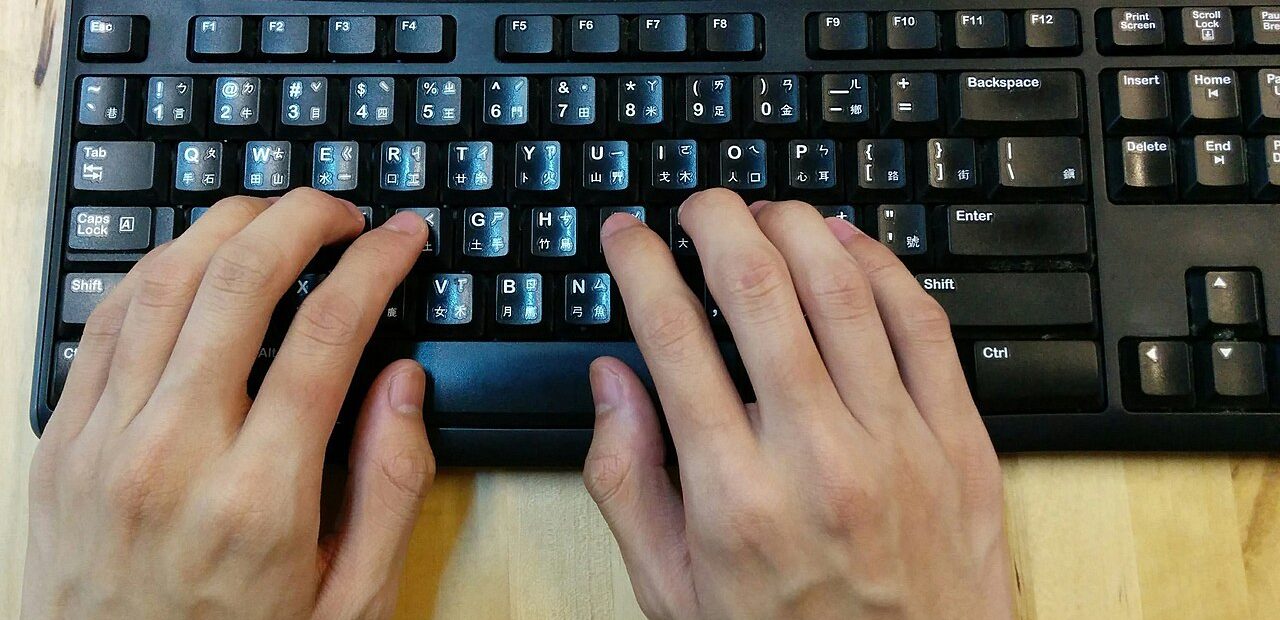
Typing speed and accuracy matter more than many students realise. Data entry, customer support and office assistant roles involve hours of typing every day. Some government clerical recruitments also include a typing or skill test, and the required speed and language vary by exam, so always check the official notification.
Along with touch typing, learn the shortcuts that save time in every application:
- Ctrl + C, Ctrl + X, Ctrl + V – copy, cut, paste
- Ctrl + Z, Ctrl + Y – undo, redo
- Ctrl + S – save (use it often)
- Ctrl + F – find text in a document, sheet or web page
- Alt + Tab – switch between open windows
- Windows key + E – open File Explorer
Word processing (MS Word or similar)
Letters, notices, quotations, reports and resumes are still created in word processors. Employers expect you to handle:
- Fonts, headings, paragraph spacing and alignment
- Bullets, numbering and tables
- Page margins, page numbers, headers and footers
- Find and replace, spell check and basic proofreading
- Mail merge for sending the same letter to many people
- Saving or exporting a document as PDF
Spreadsheets (MS Excel or similar)
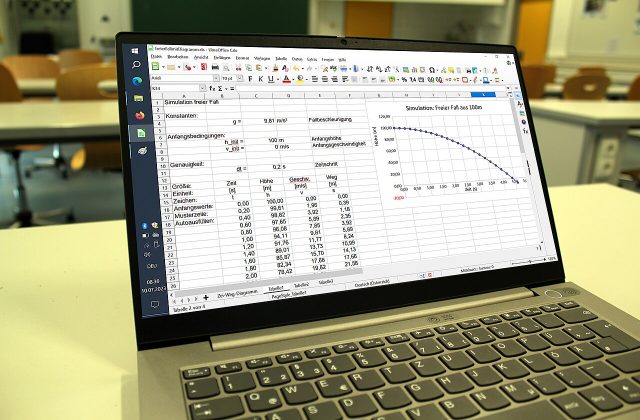
If there is one tool that separates average candidates from strong ones, it is Excel. At a basic level you should be comfortable with data entry, formatting, sorting, filtering, and simple formulas like SUM, AVERAGE, COUNT, MIN, MAX and IF. Once you have the basics, functions such as VLOOKUP or XLOOKUP and pivot tables will open doors to MIS, accounts and operations roles. Our detailed guide on advanced Excel skills for office jobs explains the next level.
Presentations (MS PowerPoint or similar)
Even junior staff are sometimes asked to put together a short presentation for a meeting or client. Learn to create clean slides with consistent fonts, add images and charts, use simple transitions, and present in slideshow mode without fumbling.
Email and online communication skills
Email is still the formal communication channel in most organisations. Many freshers lose marks in the eyes of their managers not because of technical gaps, but because of poor email habits. Practise the following until they become automatic:
- Write a clear subject line that says what the email is about.
- Start with a proper greeting and end with your name and contact details.
- Keep the message short, with one idea per paragraph.
- Understand the difference between To, CC and BCC.
- Attach the correct file and mention the attachment in the message.
- Reply within a reasonable time, and use “Reply all” only when everyone needs the reply.
You should also be comfortable with video calls on tools such as Google Meet, Microsoft Teams or Zoom: joining with a link, muting and unmuting, sharing your screen and using the chat. Shared calendars and cloud storage like Google Drive or OneDrive are now common even in small offices.
Practical tip: Before sending any important email, read it once aloud in your head, check the attachment, and only then fill in the “To” field. Leaving the recipient for last stops you from accidentally sending a half-written message.
Internet, search and online forms
A large part of office work involves finding information and completing online processes. Good internet skills include:
- Using a browser properly: tabs, bookmarks, downloads and clearing cache when a site misbehaves
- Searching smartly with specific keywords, quotes for exact phrases and site: to search within one website
- Checking whether a source is official or reliable before using its information
- Filling online forms carefully, uploading documents in the correct size and format, and saving the acknowledgement
- Scanning and resizing documents or photos to meet portal requirements
These skills are also part of the NIELIT CCC course, which covers the internet, web browsers, communication tools and digital financial services. If you plan to take the CCC exam, our CCC exam preparation guide will help.
Digital payments and online safety basics
Many jobs now involve handling UPI payments, sending payment links, checking bank statements online or using billing software. You do not need to be a finance expert, but you should understand how UPI, net banking and card payments work, and how to verify that a payment has actually been received rather than trusting a screenshot.
Equally important is online safety. Employers worry about staff clicking fake links or sharing passwords, because one mistake can affect the whole company. Use strong passwords, never share OTPs, lock your screen when you step away, and be careful with unknown attachments. Our article on cyber safety tips for students covers this in detail.
Which skills matter most for which job?
All office roles need the basics, but each job leans more heavily on certain skills. The table below gives a general idea.
| Job role | Most-used computer skills | Good next step |
|---|---|---|
| Office assistant / back-office executive | Word, Excel, email, file management, printing and scanning | Excel formulas and mail merge |
| Data entry operator | Fast, accurate typing, Excel, online forms | Data validation and lookup functions |
| Receptionist / front desk | Email, calendars, spreadsheets, phone and video call tools | Professional email writing and scheduling tools |
| Accounts assistant | Excel, Tally, digital payments, GST invoices | Tally with GST and advanced Excel |
| Sales / customer support executive | CRM software, email, Excel reports, chat tools | Reporting in Excel and basic digital marketing |
| Government clerical and computer-based posts | Typing, MS Office, internet use, as specified in the notification | CCC or similar certificate, if the recruitment asks for it |
If accounting interests you, our Tally with GST guide for accounting jobs explains what that path involves.
How to learn and practise: a simple 30-day plan
You can build solid basic skills in about a month if you practise daily for one to two hours. Here is a realistic plan.
Week 1: Computer fundamentals and typing
Learn the parts of a computer, the Windows interface, file management and shortcuts. Spend 20 to 30 minutes every day on a free typing tutor, focusing on accuracy before speed.
Week 2: Word processing and email
Create a formal letter, a notice, a two-page report with headings and page numbers, and your own resume. Set up a professional email ID (your name, not a nickname) and practise writing short, clear emails with attachments.
Week 3: Spreadsheets
Make a monthly expense sheet, a student marks list with totals, percentages and grades using IF, and a simple stock register. Practise sorting, filtering and creating a basic chart.
Week 4: Presentations, internet and revision
Prepare a five-slide presentation about yourself or a product. Practise filling sample online forms, resizing documents for upload and searching for information efficiently. Finally, revise everything by doing a small “office day” task: receive data, make a sheet, write a report and email it.
Self-study works for many people, but a structured course with a trainer helps you avoid gaps and bad habits. Our Basic Computer course covers MS Word, PowerPoint, Excel (including lookup, logical and financial functions and pivot tables) and Access, with practical exercises in small batches.
How to show computer skills on your resume and in interviews
Writing “Basic computer knowledge” on your resume tells the recruiter almost nothing. Be specific instead.
- Name the tools: “MS Word, Excel (VLOOKUP, IF, pivot tables), PowerPoint, Gmail and Google Drive.”
- Mention your typing speed if you have tested it honestly, for example “Typing speed: around 35 WPM in English.”
- Add certificates such as CCC or your institute course certificate, with the year.
- Give an example: “Maintained a stock register in Excel for a family shop” is more convincing than a list of software names.
In interviews, expect practical tests. Some companies ask you to type a paragraph, format a letter, or create a quick table in Excel with totals. Stay calm, read the instructions properly and save your work regularly. If you do not know something, say so honestly and explain how you would find the answer.
Key takeaways
- Basic computer skills are now an expectation, not an extra, in almost every office job.
- Focus on file management, typing, Word, Excel, PowerPoint, email, internet use and online safety.
- Excel skills give you the biggest advantage for office, accounts and MIS roles.
- A daily practice plan of about 30 days can build a solid foundation.
- On your resume, name specific tools and give real examples instead of writing “basic computer knowledge”.
Ready to build job-ready computer skills with guided practice? Explore our Basic Computer course or contact NETWORK NET to find a batch timing that suits you.
Frequently asked questions
What are the basic computer skills required for an office job?
Most office jobs expect you to manage files and folders, type accurately, create documents in MS Word, work with data in MS Excel, make simple presentations, write professional emails, use the internet and online forms, and follow basic online safety practices.
How long does it take to learn basic computer skills?
With one to two hours of daily practice, most beginners can become comfortable with the basics in about four to eight weeks. Speed and confidence keep improving with regular use at work.
Is typing speed important for getting a job?
Yes, especially for data entry, customer support, office assistant and some government clerical posts. Accuracy matters as much as speed. For government recruitments, check the official notification for the exact typing test requirements.
Should I learn Excel even if I am not going into accounts?
Yes. Excel is used in sales, HR, operations, administration and many other departments for lists, reports and tracking. Even basic formulas, sorting and filtering make you noticeably more productive.
Which certificate is useful for proving basic computer skills?
A practical course certificate from a training institute helps show employers you have been trained. The NIELIT CCC certificate is also recognised for many government jobs where computer knowledge is required. Always check what the specific job or recruitment asks for.